
Ubisoft proposes even more layoffs after last week's studio closures and game cancellations

Instagram, Facebook and WhatsApp to trial premium subscriptions
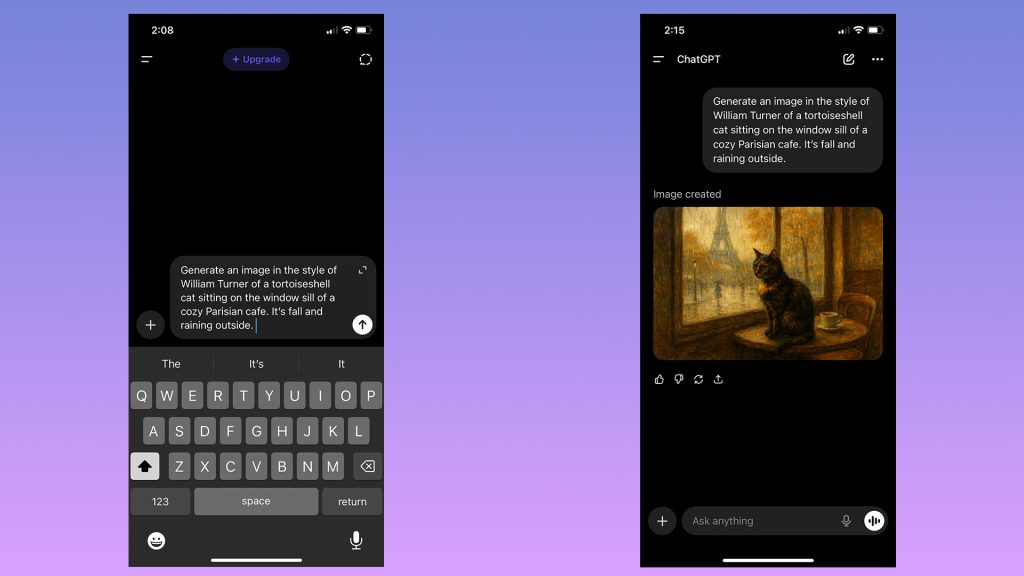
Since March 2025, ChatGPT has been capable of generating images. Following a period where it briefly wasn’t available to free users, you now don’t even pay for one of OpenAI’s subscriptions to use this feature. And while making images inside of ChatGPT is easy, there are some nuances worth explaining. For example, did you know you can ask ChatGPT to edit photos you’ve taken? It’s more powerful than you might think. Here’s everything you need to know about generating AI images with ChatGPT.
How to create images with ChatGPT using text prompts
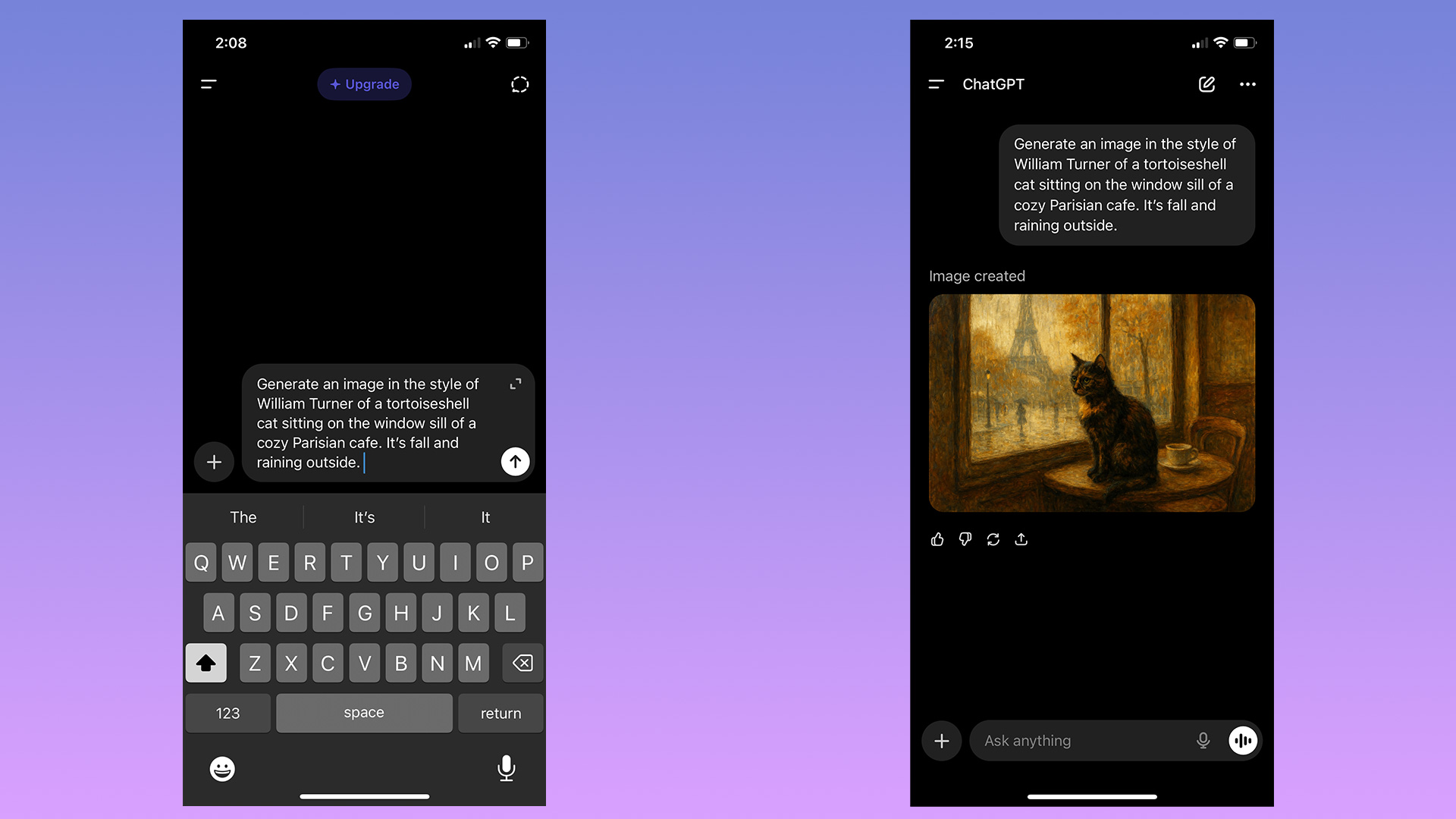
You can start generating images in ChatGPT simply by typing in the prompt bar what you want to see. There’s no need to overthink things; as long as you have some version of “generate an image” followed by a description of your idea, ChatGPT will do the rest.
Depending on the complexity of the prompt and whether you pay for ChatGPT, it may take a minute or two for the chatbot to complete your image request. Sometimes the process can take longer if OpenAI’s servers are experiencing greater traffic than usual.
At the end of last year, OpenAI updated the model powering image generation to make it faster, as well as better at rendering text and following instructions. At the same time, it added a dedicated “Images” section to ChatGPT’s sidebar. Here you can see all the images you’ve made, alongside sample prompts and suggestions for styles to try out, making it a great place to start if you’ve never used an image generator before.
How to create images with ChatGPT using existing photos
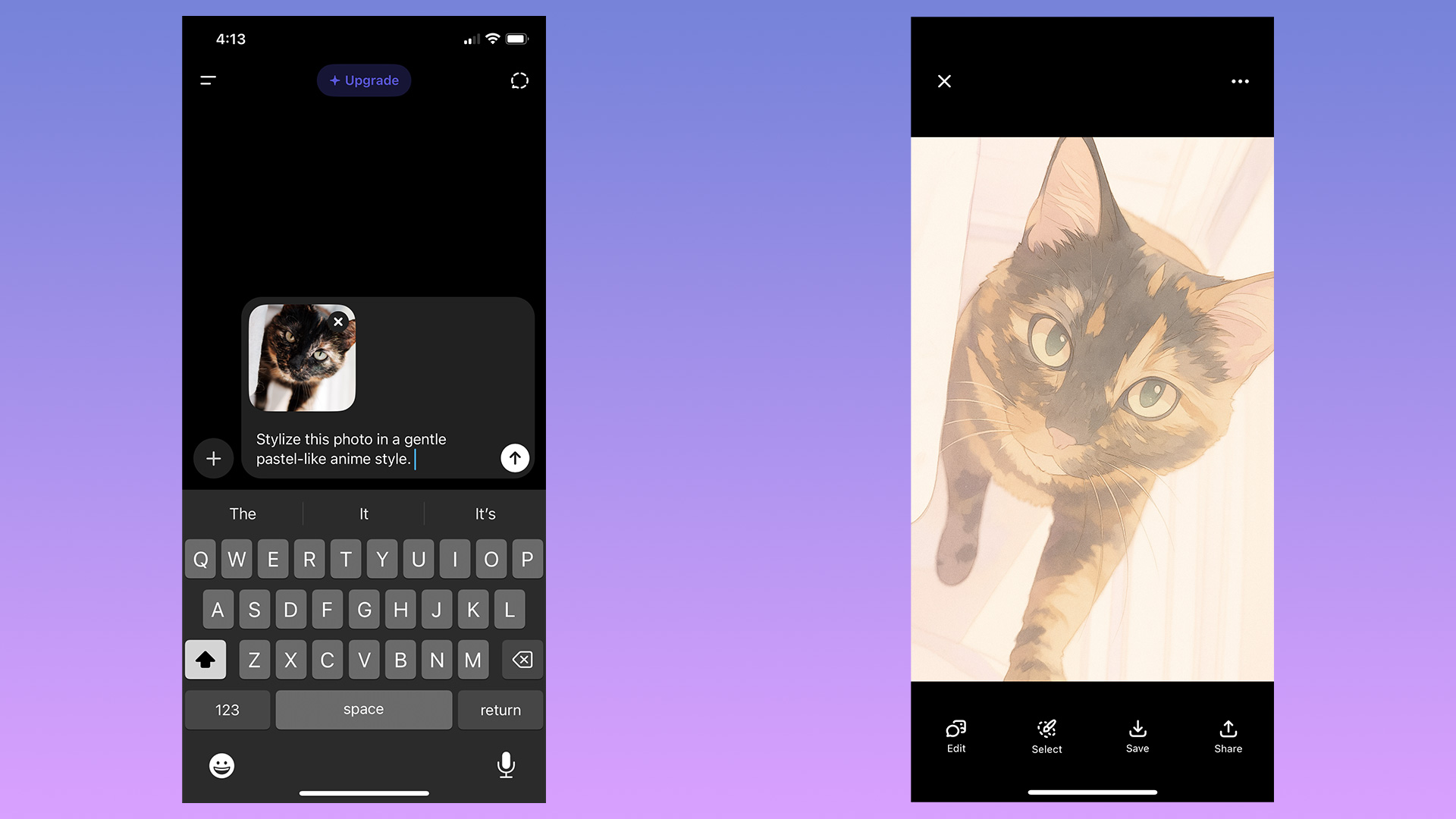
In addition to generating images from text prompts, ChatGPT can modify existing photos or images you upload. This is my preferred way of making images with ChatGPT; I don’t need to describe the composition, I can use an existing one to guide the chatbot. To use an existing image as a starting point for a new generation, follow these steps:
-
Tap the “+“ icon, located to the left of the prompt bar.
-
Select Add photos & files.
-
Select the image you want ChatGPT to edit. If uploading an image from your phone, you’ll first need to grant ChatGPT access to your camera roll.
-
Write a prompt describing the changes you want.
If generating from the Images section, tap “Add photos” instead.
Keep in mind any photos you upload to OpenAI’s servers may be used by the company to train future models. You can opt out of allowing your data to be used for training by following these steps:
-
Open the sidebar menu.
-
On mobile, tap the two lines on the top left of the interface; on desktop, click instead on the OpenAI logo.
-
-
Tap your name to access account settings.
-
Tap Data controls.
-
Toggle off Improve the model for everyone.
How to edit the images ChatGPT generates
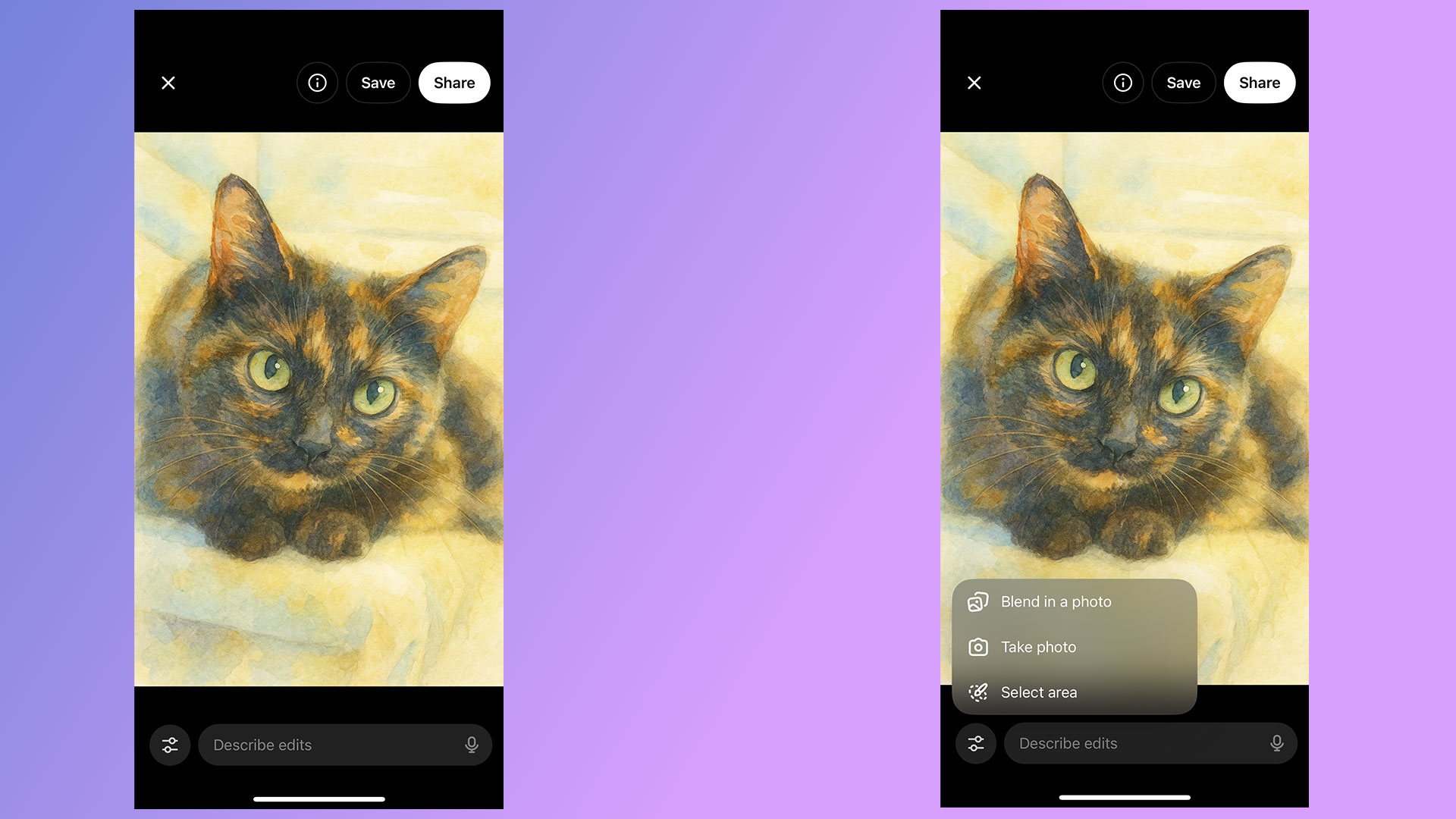
If you’re unhappy with ChatGPT’s output, you have two options. You can either prompt it to create an entirely new image, or edit parts of the picture it just generated. As always, the process for both involves simply typing what you want in the prompt bar. On mobile, OpenAI gives users a few different ways of accomplishing the same task.
To generate an entirely new image:
-
Tap the three dots icon below the image ChatGPT created.
-
Select Retry.
To edit part of an existing image generation:
-
Tap the image ChatGPT created.
-
Tap Select area.
-
Use your finger to mask the section of the image you want ChatGPT to tweak. The slider on the left allows you to adjust the size of the masking brush. On desktop, masking is also available if you click on an image and then click on the paintbrush icon on the top right.
-
Describe what you want ChatGPT to add, remove or replace through the prompt bar.
ChatGPT can also blend one of your photos with an image it has generated. To do this:
-
Tap an image ChatGPT created.
-
Tap Blend in a photo.
-
Upload the photo you wish
Like all AI systems, ChatGPT is non-deterministic, meaning even if you prompt it in the same way multiple times, it won’t generate the exact same response each time.
Tips to create better images with ChatGPT
The best advice I can offer is to be specific when prompting ChatGPT. The more detail you can provide when describing what you want from it, the better the results. And remember: ChatGPT can hallucinate — as you may have noticed from one of the example pictures I included above. In the image of the tortoiseshell cat, not only is the tortie not sitting on the window sill as instructed, it’s sitting on a table that doesn’t make much sense. So, most of all, be patient. Prompting an AI model is not exact science, and it can take a few tries before it creates the result you want.
FAQs
How do you access ChatGPT?
ChatGPT is available on the web, desktop and mobile. To access it on your computer, open your preferred browser and navigate to chatgpt.com. OpenAI also offers dedicated Mac and Windows apps you can
Original aticle here: Engadget